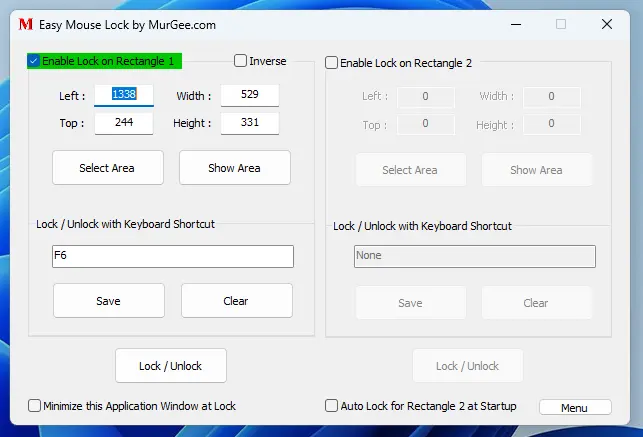
Control your mouse cursor on a Windows 10 or Windows 11 computer with the digitally signed mouse control software applications presented here. The Easy Mouse Lock application allows you to limit or restrict mouse cursor movements within a defined rectangular screen area. The Mouse Disabler application allows you to enable or disable selected mouse buttons. The applications listed below should be tried without having any unsaved data or important tasks running or pending. At the bottom of this website, you can find information about useful keyboard keys, shortcuts, the on-screen keyboard, etc., to control your Windows computer.
Easy Mouse Lock to Restrict Mouse Cursor Movement
Now you can restrict mouse cursor movement within a defined rectangular screen area. The restriction of mouse cursor movement can be controlled by pressing a configurable keyboard shortcut to restrict or release it. The mouse cursor movement can also be released by closing the application.
Download free trial of Easy Mouse Lock and try it on your Windows 11 or Windows 10 computer. After the free trial, you can unlock the software to use it for up to 3 months from the date of payment on one computer for only $6.78 USD.
There are two configurable rectangular screen areas that can be configured with keyboard shortcuts. You can even invert the rectangular area selection so that mouse cursor movement is not allowed in the selected rectangular screen area but is allowed to roam freely in other screen areas. You can drag the software to any new screen position by dragging the Easy Mouse Lock title bar or even any blank area on the software window.
The main screen of this mouse cursor movement locking application can be minimized to the taskbar or hidden to the system tray using the right-click menu available in the software. You can also launch the on-screen keyboard, Task Manager, or even show the desktop from the context menu of the software. The settings of the software allow you to enable or disable voice alerts that notify you about the locked state. The settings of Easy Mouse Lock also allow you to enable or disable whether the main screen of the software should remember its position on the screen for easy control.
How to Control the Easy Mouse Lock Application
Before using this mouse locking software, you should understand how to control your computer using the keyboard. There are some useful keyboard shortcuts that can be handy, such as Ctrl+Alt+Delete to view the computer lock screen (which allows free mouse cursor movement), Alt+F4 to close the active application window, and Alt+Space to view the system menu of the active application. You can use arrow keys to navigate to the appropriate menu and then press the Enter key to click on the focused menu item. In many applications, including the Windows Task Manager, pressing Shift+F10 invokes the context or right-click menu, which can be navigated using the up and down arrow keys. By pressing the Enter key, you can click on the focused menu item.
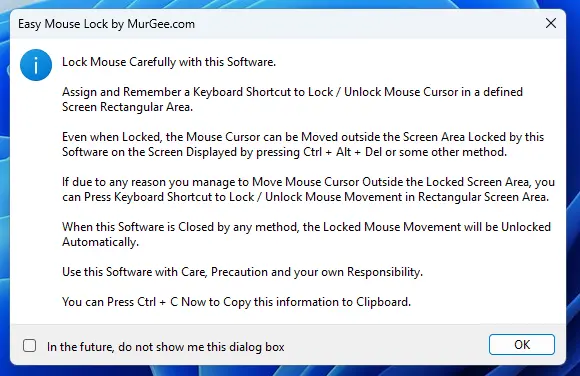
When the mouse cursor is locked using Easy Mouse Lock, it cannot be manually moved to a rectangular screen area outside the locked area. You can press Ctrl+Alt+Delete, which displays a different screen where you can move the mouse cursor to any screen area to sign out, shut down, or control your computer. Note that if you move the mouse cursor outside the locked screen area, it will be locked at the current mouse cursor location. You can then either close the Easy Mouse Lock application to remove the lock or press the configured keyboard shortcut to unlock the mouse cursor from the locked screen area.
If you have locked the mouse cursor by clicking the Lock/Unlock button on the Easy Mouse Lock software, you can press the Spacebar to click it again and unlock the mouse cursor movement. Closing the Easy Mouse Lock application unlocks any mouse cursor movement restrictions (if imposed) and allows the mouse cursor to roam freely to any screen location.
Mouse Disabler to Disable Mouse Buttons
When you wish to disable selected mouse buttons, you can use Mouse Disabler on your Windows 10 or Windows 11 computer. This mouse control software application is available as a free-to-download trial. Apart from disabling mouse buttons (like the left, middle, and right mouse buttons), you can also disable mouse scrolling and keyboard keys with this easy-to-use mouse control software application.
Download free trial of Mouse Disabler software application on your Windows 10 or Windows 11 computer and give it a try. Once the free trial expires, you can pay $9.87 USD to use the mouse control software application on one computer for up to 3 months. The screenshot of Mouse Disabler displays easy and quick ways to control mouse buttons. Note that by clicking on any of the appropriate checkboxes to disable a button, it will remain disabled until you close the application by pressing Alt+F4 or by clicking the close button at the top right corner of the Mouse Disabler software.
You can enable a global keyboard shortcut to close the application. When the application is closed, all the buttons blocked by the software will be released and work as usual. You can right-click on the Mouse Disabler to view the context menu, which offers various feature controls for the software. You can even drag the main screen of the software by the title bar or any empty area on the Mouse Disabler software.
Windows allows you to distinguish between normal mouse input from input devices (like a physical mouse or any other mouse input device) and mouse input injected or automated by software applications (like the mouse automation applications available on MurGee.com). The Mouse Disabler allows you to selectively allow automated mouse input using the Allow Simulated checkbox.